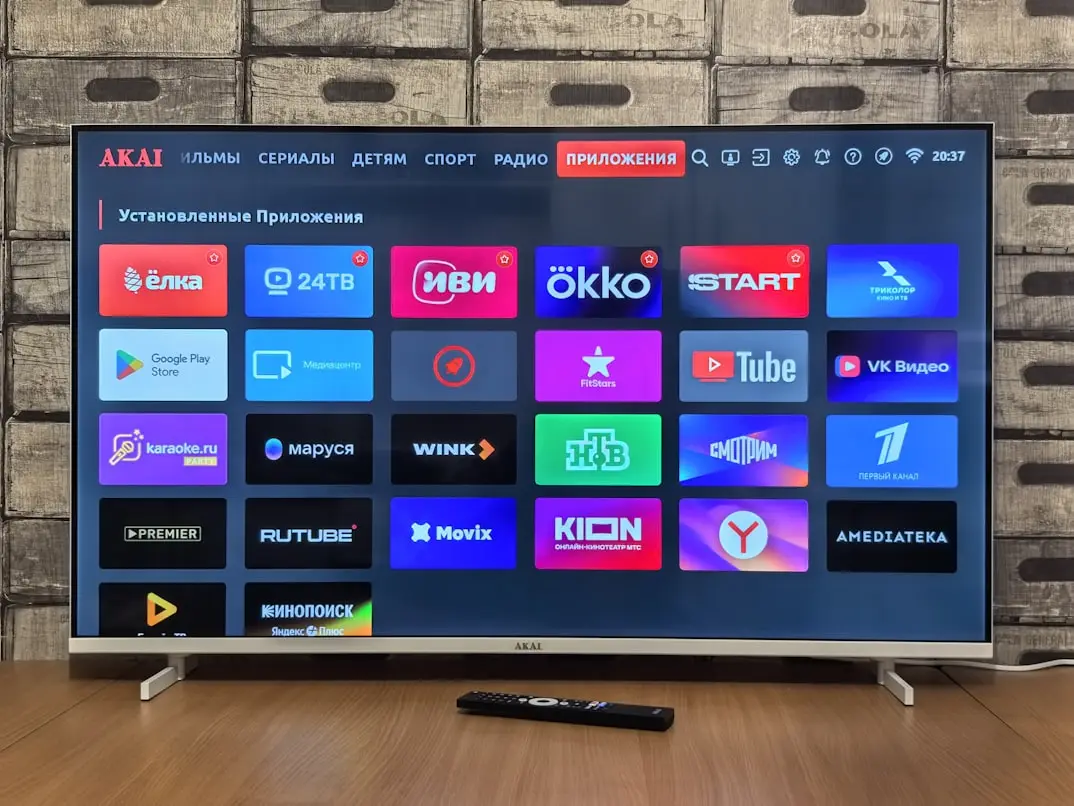
How to install IPTV on a Smart TV: where to begin
Before installing IPTV on your Smart TV, check three things: your TV's operating system, which IPTV players are available for that system, and which login method your provider supports. The three must be compatible. A TV with an internet connection does not automatically support every IPTV application. This guide walks you through a safe, practical setup without assuming that your screen looks exactly like someone else's tutorial.
The basic process is straightforward: verify your TV model, install a compatible player from a trusted source, enter your valid subscription credentials or playlist, and test video, audio, and navigation. An IPTV player is software, not a subscription that automatically provides channels. Check that your provider is authorized to distribute the programming you want to watch.
This guide is intended for viewers in the United States. App availability may vary by device generation, TV software version, and US app-store region. Menu names may differ as well. Use these steps as a framework and consult the TV maker's and app developer's instructions for exact buttons. If you have not yet chosen a service, read our IPTV provider buying guide.
What you need before getting started
Locate your TV's full model number, operating system, and software version. You can usually find them under Settings or System Information, or on the label on the back of the TV. Write down the full model number: two TVs with the same screen size may run very different software. Check that you have enough free storage for the app and its data.
You will also need a working internet connection, a remote control, and valid account information. Ask your provider whether they supply an M3U playlist URL or an Xtream-compatible server address, username, and password. Some players connect a playlist through the developer's device-management website. Verify that the website belongs to the developer of your installed app before entering any credentials.
- Your TV's model number, software version, and app-store region.
- A compatible player from an identifiable, trusted developer.
- The correct login method and active subscription credentials.
- A reliable connection at the TV, ideally with an Ethernet option for comparison.
- Clear information about any separate player activation or app fees.
Set aside some uninterrupted time for your first setup. Keep account information available privately, but never post a complete playlist URL in a public forum or support comment. Such URLs can contain sensitive access details.
Samsung Smart TV: check your exact model
Many Samsung Smart TVs use Tizen, but that alone does not tell you which applications are available. Model year, product series, software version, and region all affect the app catalog. Search directly in your TV's app store. Finding an app on your phone does not mean it is supported on your television. Check both the app's full name and its publisher before installing.
What if an app does not appear?
First, check for regular software updates and verify that you are using your TV's official store. Do not switch regions simply to make an app appear, since this may affect other services and terms. Look for the developer's compatibility information for your specific model. An Android APK is not a general solution for Samsung Tizen; Tizen TVs cannot simply run Android APK files.
Distinguish between an app that is missing and an app that opens but cannot play video. The first is a compatibility problem. The second may involve login details, the video source, or your network. Record exactly what happens. If your TV is not supported, a compatible HDMI streaming device is often safer and simpler than forcing unofficial software onto the TV.
LG Smart TV: webOS and app availability
For an LG television, first check whether the model uses webOS and identify the installed version. Then search for your chosen player in the TV's own app store. Availability depends on the model, platform generation, and region. Instructions written for a recent LG television may not work on an older model, even when their remotes look similar.
Read the app's supported login options. Different versions may support M3U, direct account entry, or linking the TV through a website. Do not pay for player activation until you have confirmed that the app works with the credentials supplied by your provider. A developer's announcement about a future LG version does not mean the app is available for your TV today.
Avoid confusing apps with similar names
App-store results may include nearly identical names. Compare the developer and official support website with the listing shown on your TV. If unsure, ask for the exact app name recommended for your model. Your IPTV provider and the IPTV player's developer are separate parties. Keep their contact information separate so that you can direct app-license questions to the appropriate company.
How to choose a compatible IPTV player
The best player for your Smart TV is one that accepts your subscription's login method and works comfortably with your remote. Start with compatibility and account input, then compare features such as favorites, an electronic program guide (EPG), and parental controls. An impressive feature list is irrelevant if the app cannot run on your TV.
| What to check | Why it matters | What to do before paying |
|---|---|---|
| --- | --- | --- |
| Exact TV model | Brand alone does not establish compatibility | Verify the model number and software version |
| M3U or Xtream | The player must accept your account format | Compare supported login methods |
| Remote navigation | Daily browsing should be convenient | Test search, Back, and Favorites |
| Player fees | The app may be billed separately | Review current activation and licensing terms |
| Support | App and subscription problems may have different owners | Save both support contacts |
Check whether you can back up your preferences or favorites before switching players. Do not open several apps with the same account at once: your plan may limit simultaneous connections. Compare one player at a time. Our IPTV player comparison guide covers useful differences without assuming one app is best for every household.
Comparing IPTV Smarters Pro and IBO Player Pro
IPTV Smarters Pro is a commonly searched player name, but verify the exact edition and publisher. Consult the Smarters Pro website for details on supported platforms and remember that player software does not itself include a television subscription or channels. Apps with similar names are not necessarily built by the same company or offer the same features.
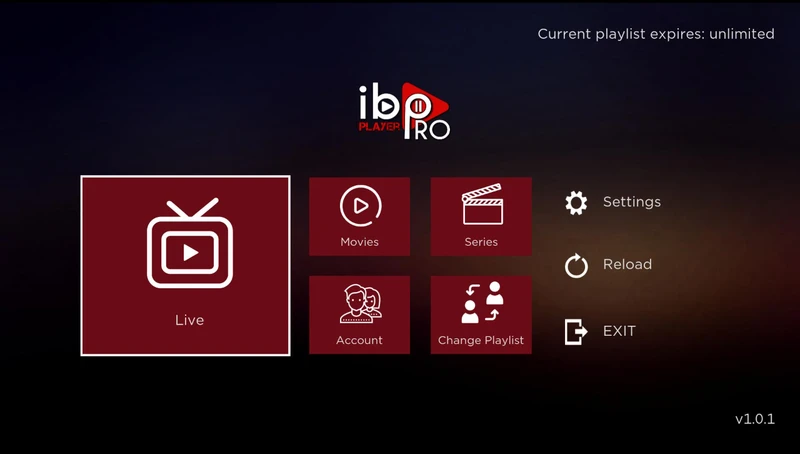
For IBO Player Pro, check the edition and how you add a playlist. A device code displayed by the player is not an IPTV subscription. Activation charges for the player, when applicable, are separate from content access. If the app uses an online activation portal, reach it only through the verified developer documentation for your installed version. Do not share device codes publicly without good reason.
Try the same practical test in each app: can you sign in, open an authorized stream, go back to the channel list, and save a favorite? Then check whether the EPG loads. Features may differ by platform. This guide does not imply that Nigma TV is affiliated with these app developers or guarantee the availability of any particular app version.
Smart TV IPTV installation: step by step
Start simple: one television and one player. Add other devices later if your subscription permits. This makes it easier to find the source of an error. Avoid performing a factory reset as your first troubleshooting step because that erases unrelated settings without identifying the cause.
- Confirm that your TV is connected to the internet and install normal system updates if available.
- Find a compatible IPTV player in your TV's official app store and verify its publisher.
- Open the app and locate its supported playlist or account setup option.
- Enter one valid set of credentials, checking spelling, protocol, and port where relevant.
- Allow the first channel-list and EPG synchronization to finish.
- Open a few authorized channels, test the sound, and create a small favorites list.
- Close the app normally and check that your settings remain saved after reopening it.
After each step, note what works and what fails. If the app cannot load a channel list, adjusting picture settings will not help. If the list loads but the screen stays black, try another authorized stream first. That separates an overall installation issue from a problem affecting one source.
Setting up an M3U playlist carefully
An M3U playlist contains references to media streams. Depending on your player, you may import a file or paste a full URL. Use the method provided with your subscription. A link to an account dashboard is not automatically an M3U playlist URL. If unsure, ask which exact address belongs in the playlist field.
Verify the full URL
Copy the link directly from a trusted source when possible. Check capitalization, punctuation, the start of the URL, and any parameters after a question mark. Extra spaces or missing characters can prevent loading. Do not shorten or edit the link yourself; even a small parameter may be required for authorization.
Once the playlist loads, start with a manageable favorites list. Very large playlists may take longer to process on older TVs. Do not delete your account setup simply because the channel order is inconvenient. Explore sorting and favorites options first. A locally imported playlist file also may not refresh its channel list or EPG automatically; that depends on the app and the data source.
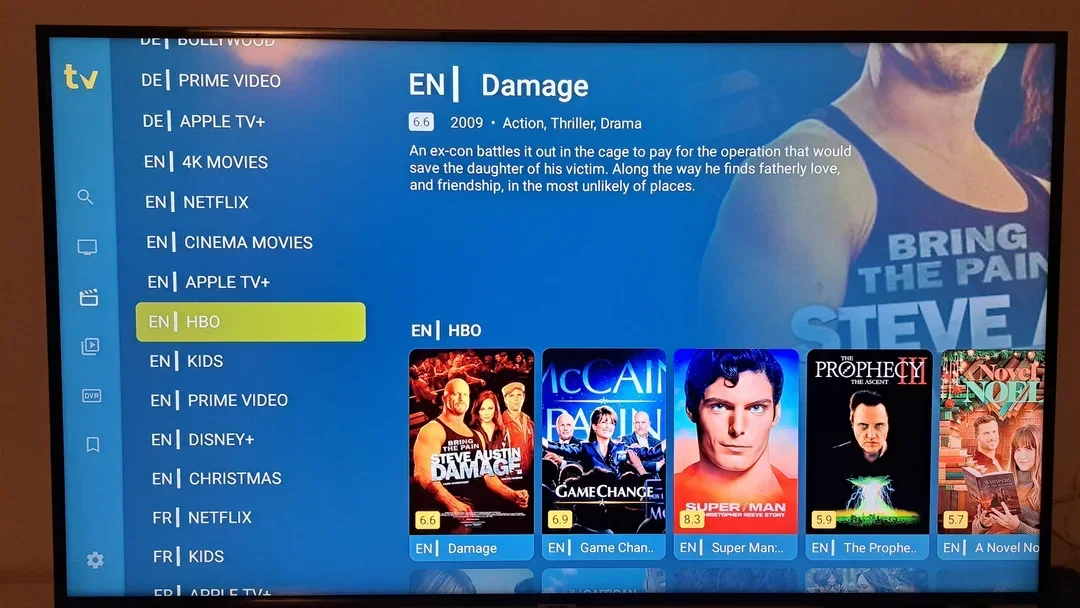
Entering Xtream-compatible credentials correctly
Xtream-compatible account setup typically uses separate fields for a server URL, username, and password. Labels can differ between apps. Make sure your player version supports this method. Do not paste a complete M3U playlist link into the server field unless your provider specifically instructs you to do so for that app.
The server URL may include a protocol and port number. Enter the information exactly as provided, with no extra spaces. On a TV remote, on-screen keyboards sometimes insert unwanted spaces or uppercase letters. A profile name is usually only a nickname used inside the app; it is not necessarily your service username.
If login succeeds but the program guide does not load, the credentials are not automatically wrong. EPG data may need a separate sync, and not all sources provide it. Ask your provider which features your account supports. When troubleshooting a one-connection plan, sign out of other streaming devices so a second session does not interrupt the first.
Improving the internet connection at your TV
Test connectivity where your TV is installed, not just next to the router. A phone showing excellent Wi-Fi next to the modem says little about reception behind a large screen in another room. Distance, walls, and network congestion all affect consistency. If possible, compare Wi-Fi performance against a wired Ethernet connection.
Do not look only at the highest download-speed reading. Streaming needs enough available bandwidth over time. Downloads, backups, and other video streams may share the same connection. Test during a quiet period and again at your normal viewing hour. Note whether buffering happens on every channel or only one.
Change one thing at a time
Try moving your Wi-Fi access point, or connect Ethernet temporarily while keeping the same channel and playback quality. Changing the player, network, and video settings all at once makes it impossible to know what helped. See our IPTV buffering troubleshooting guide for a more detailed process. A faster internet plan will not fix expired credentials or an unsupported video codec.
Common Smart TV IPTV setup problems
An error like “it doesn't work” is understandable but too general for focused support. Identify the stage: installing the app, opening it, signing in, loading the playlist, or playing video. Save the error message without exposing your password. Make sure the TV's date and time are correct, since incorrect settings can disrupt connections or EPG times.
| What you see | First check | Next step |
|---|---|---|
| --- | --- | --- |
| App missing from store | TV model, software, and region | Check developer compatibility guidance |
| Login rejected | Exact credentials and active subscription | Ask provider to verify account status |
| Playlist loads but video is black | Try a different authorized channel | Check the source and supported video formats |
| Video works but audio is missing | Test sound on another stream | Review audio output and codec support |
| EPG shows wrong times | Device time zone and date | Refresh or resync EPG if supported |
Do not immediately erase all app data. That can remove a working channel list and favorites. Keep your configuration in a secure place. If you are not sure who can diagnose the problem, contact Nigma TV support and include your TV model, app version, and exact symptoms, without sharing passwords publicly.
Smart TV app or external streaming device?
Watching directly through your Smart TV is convenient because it avoids extra hardware and may let you control everything with one remote. This works well when the TV supports an updated compatible player. An older TV can still have an excellent screen while its app selection and storage become limited.
An HDMI streaming stick or box offers another operating system on which to run the player. That may improve app compatibility, but it adds hardware cost, power requirements, and picture or audio settings. Check its operating system, supported players, and network connection rather than judging by an advertised maximum resolution alone.
Do not buy new hardware just because one stream buffers. First determine whether the current issue involves the app, account, or network. A new device cannot repair a faulty source. If Android TV or Google TV is a suitable alternative, continue with our Android TV IPTV setup guide. Compare long-term updates and everyday usability, not just technical specifications.

Safe installation and account protection
Install software only when you can verify its source. Prefer the TV's official app store or the developer's verified instructions for your model. A search ad using a familiar app name is not proof that the advertiser is the genuine developer. Be especially careful when an unrelated website tries to sell both a player activation and an unclear channel subscription.
Keep account credentials in a trusted password manager or other secure storage. Never post a full M3U URL in a forum, even when requesting technical assistance. Blur passwords and personal information in screenshots. If credentials are exposed, ask your provider about replacing or securing the account.
- Verify the publisher and website before installing an app or using an activation portal.
- Read the applicable terms before paying for player activation.
- Keep software updated and remove unused applications when appropriate.
- Set up parental controls if your household needs them and the player supports them.
- Separately verify that you have permission to access the content you intend to watch.
A successful installation demonstrates that the technical components work together. It does not independently prove content rights or guarantee future channel availability.
Frequently asked questions about IPTV on Smart TV
Can every Smart TV play IPTV?
No. Your TV needs a compatible player and must support the required video and audio formats. Check the model, operating system, software version, and app-store region. An external streaming device may be an option if the TV's built-in app platform is limited.
Why can't I find IPTV Smarters Pro on my TV?
App names, publishers, and availability differ by platform and region. Verify the official developer and search your TV's own app store. Finding an Android version does not mean the same app exists for your Samsung or LG model.
Is a paid IPTV player the same as an IPTV subscription?
No. An app payment may activate player features, but it does not automatically include live channels or on-demand content. Check which payment covers the app and which covers the subscription, as well as who provides support.
Should I choose M3U or Xtream?
Use the login method supported by both your app and service. M3U typically uses a playlist file or complete URL; Xtream-compatible login uses separate server and account fields. Do not modify the information provided to force a different format without instructions.
Can I use the same credentials on two televisions?
That depends on your subscription's permitted simultaneous connections. Saving login details on two TVs does not necessarily mean you may stream on both at the same time. Check your plan and test devices separately if only one connection is included.
What should I do if video works but the program guide doesn't?
First check your TV's date, time zone, and EPG settings. The program guide may require a separate data source or synchronization. Ask your provider whether guide data is available for those channels before reinstalling the entire app.
A successful setup starts with the right components
Begin by identifying your TV model and choosing a player that supports your subscription's login method. Enter the credentials carefully, let synchronization finish, and test video, sound, the program guide, and remote navigation separately. Changing one variable at a time makes troubleshooting much easier.
If you're considering Nigma TV, confirm your exact TV model and any third-party app costs first. Then review the available options through VIEW IPTV PLANS or get help from our setup guide. A suitable subscription, compatible player, and reliable network all matter; none automatically replaces the others.